Creating a stunning render isn’t just about the right lighting or perfect angles—it’s about materials that look and feel real. Lumion materials are essential for adding depth, texture, and authenticity to your architectural visualizations. Whether you’re just getting started or you’re a seasoned pro, learning how to craft lifelike materials can take your designs to the next level.
Every material has a unique story—polished marble reflects light differently than aged brick, and weathered wood has imperfections that make it feel alive. Lumion’s Physically Based Rendering (PBR) workflow helps replicate these natural characteristics, ensuring your materials interact with light just like in real life. The result? More immersive and believable renders.
Start by selecting a surface in Lumion’s material editor, then apply a Standard Material. From there, you can load your own high-quality texture to match the look you’re going for.
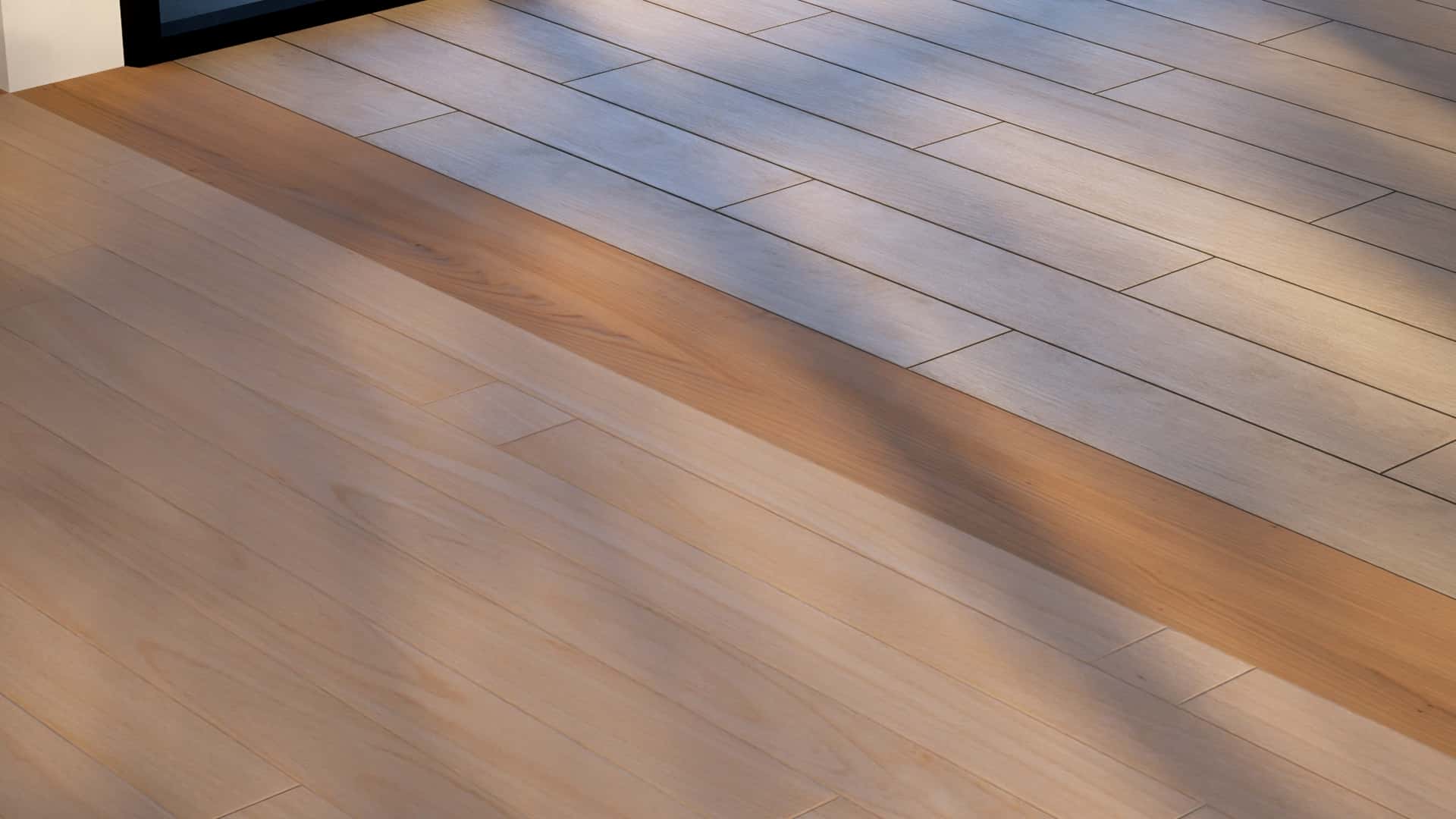
Size matters! Lumion’s real-world measurement system ensures that your materials are correctly scaled, so you don’t have to guess.
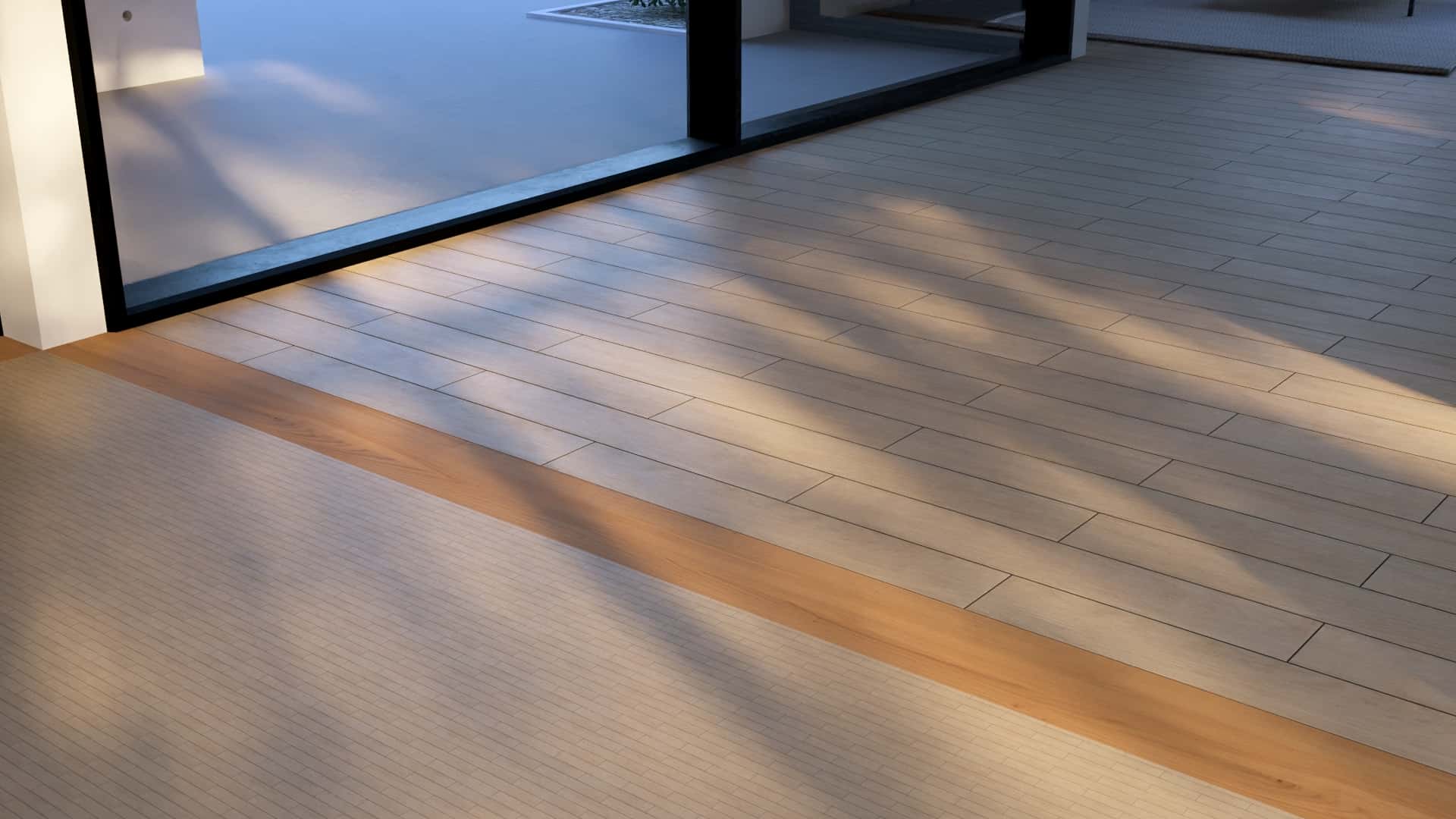
Flat materials look fake. Use Normal Maps and Displacement Maps to create depth, adding realistic highlights and shadows.
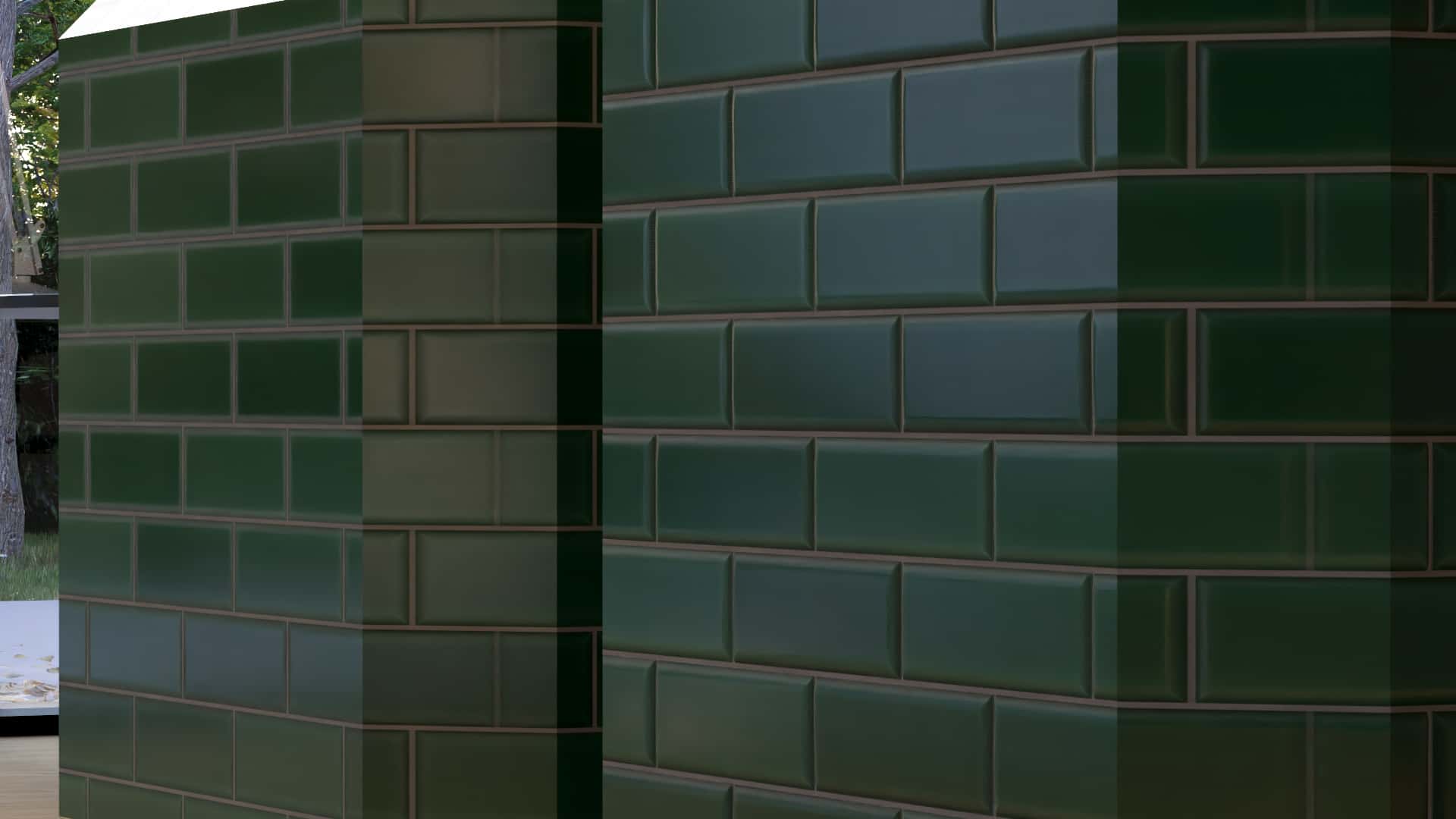
Surfaces in real life aren’t flawless. Tweaking the Roughness slider controls how matte or glossy a surface looks, while Reflectivity determines how light bounces off it.
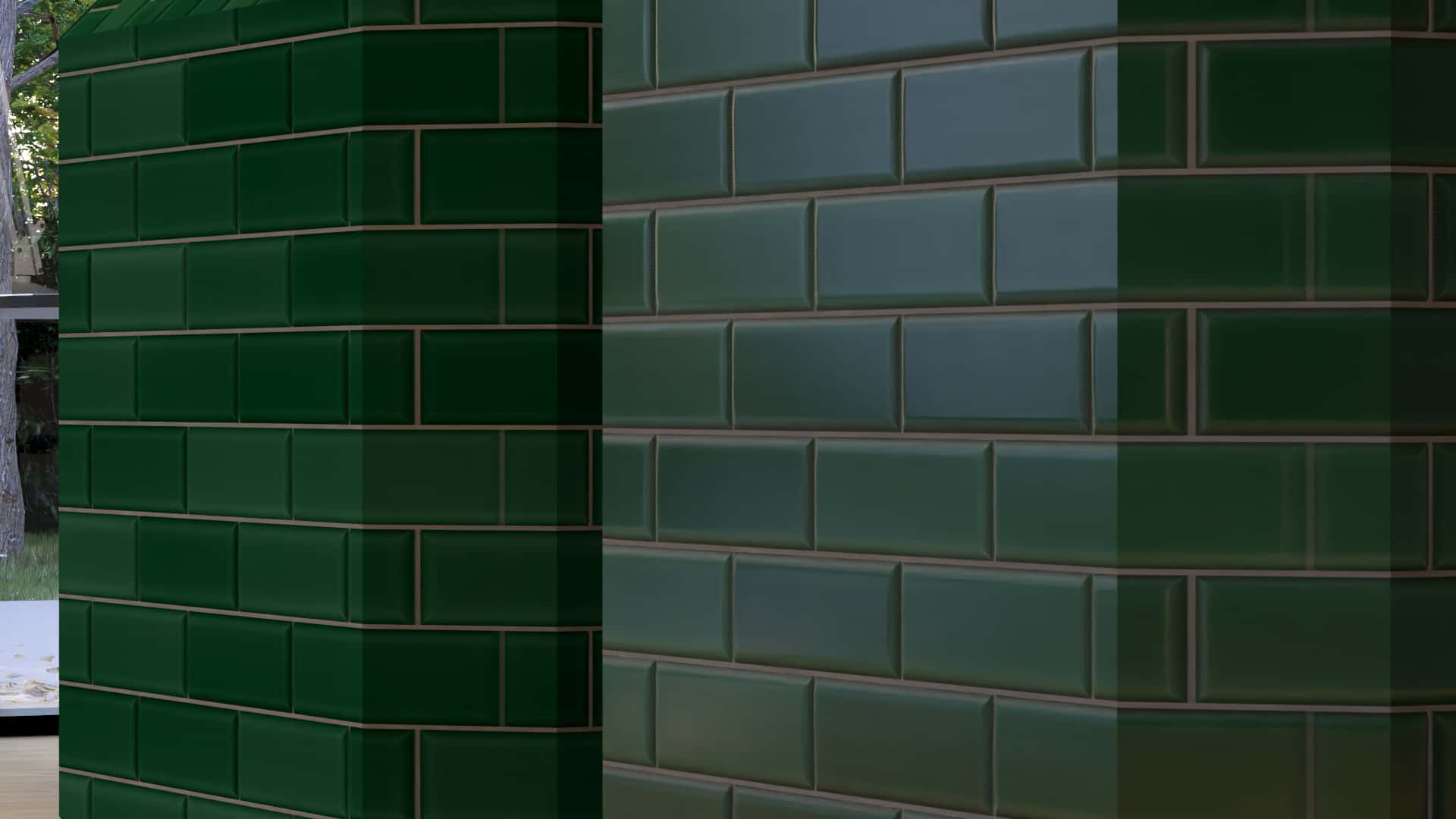
Want to make materials feel aged or exposed to the elements? Lumion’s Weathering tool lets you add rust, dirt, and wear, making your renders more dynamic and natural.
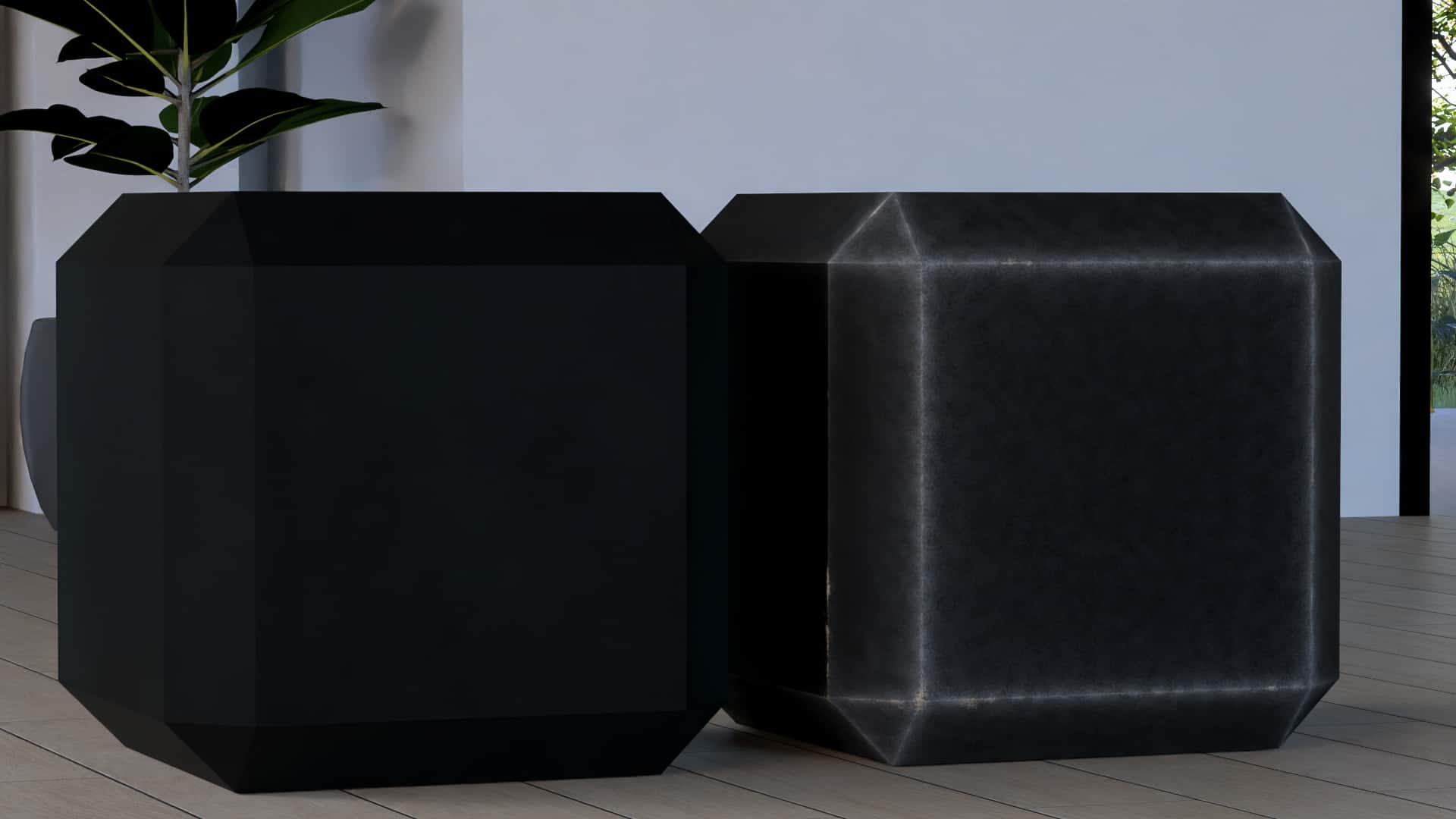
Perfectly sharp edges are a dead giveaway of CGI. Use Lumion’s edge softening tool to round out corners for a more organic and believable look.
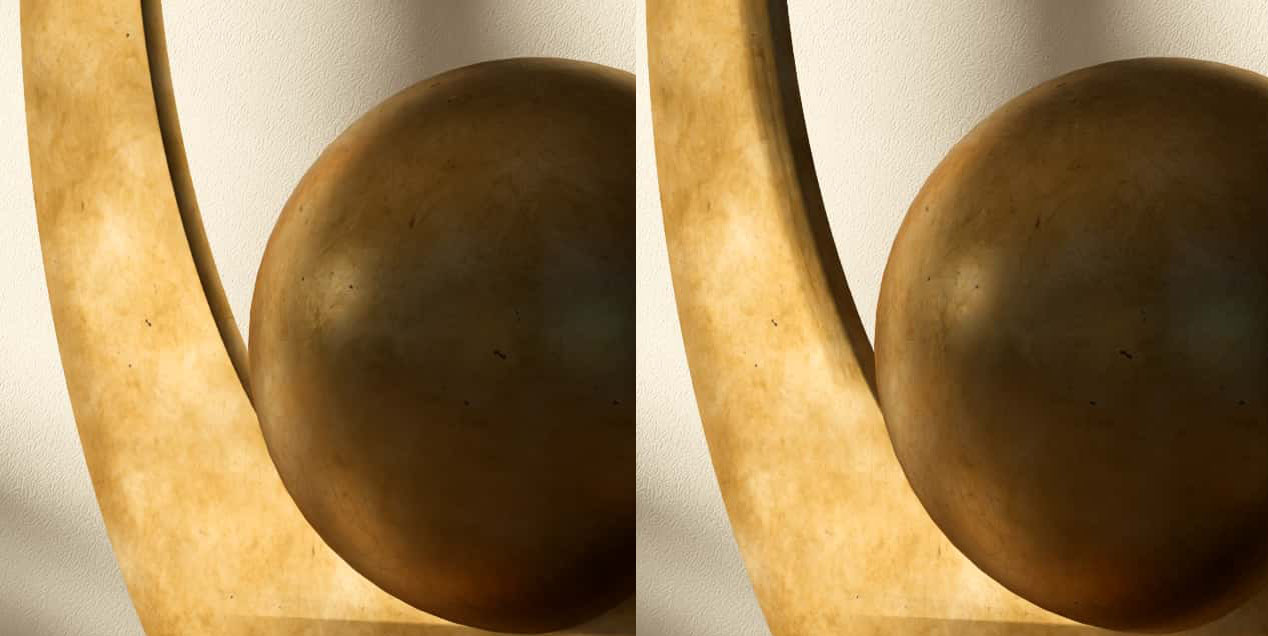 Upgrade
Lumion’s built-in materials are great, but creating custom textures from scratch can be time-consuming. If you want to save time and achieve professional-level realism, check out our high-quality material packs. With over 1000 premium PBR materials, including wood, marble, metal, and fabric, you can instantly elevate your designs with ready-to-use textures.
Start creating stunning, lifelike renders today—explore the Lumion materials pack at Easyviz3d.com!